 Cheevotron
Console guide
ModRetro Chromatic
Play your original Game Boy and Game Boy Color cartridges on the Chromatic and earn achievements, with the phone in your pocket. Unlocks pop up right on the Chromatic's screen.
This guide covers the setup. For an overview with the trailer, see Achievements on the ModRetro Chromatic.
What you need
- A ModRetro Chromatic with Cheevotron's firmware. ModRetro's own firmware doesn't share the console's memory; Cheevotron's version is an open-source build of ModRetro's firmware that does.
- Your Game Boy or Game Boy Color cartridges, or an EverDrive GB flash cart.
- An Android phone or an iPhone with the Cheevotron app.
- A USB-C data cable, once, to install the firmware: between an Android phone and the Chromatic (no computer needed), or between a computer with Chrome or Edge and the Chromatic.
1. Install the firmware
Connect the Chromatic to an Android phone, switch it on, and choose Install Cheevotron in Settings › Chromatic › Firmware. The app backs up the Chromatic's original firmware first and can put it back any time. It takes about three minutes the first time, about one for an update. See Installing the firmware.
With an iPhone, install it from a computer on the setup page instead: an iPhone can't reach the Chromatic's USB chips. The page backs up the original firmware too.
2. Pair over Bluetooth
- Switch the Chromatic on.
- In the app, open Settings › Chromatic › Pair over Bluetooth (on iPhone: Settings › Pair a console), or use the introduction, and pick your Chromatic. It's called "Chromatic" followed by four characters.
Paired once, it connects by itself whenever the Chromatic is switched on nearby.
When does it connect? To save battery, the Chromatic's Bluetooth is on for two minutes after it's switched on, wakes up, or loses the connection. If the app says "Paired" but not "Connected", open the Chromatic's menu once (side button) and it connects within seconds.
With an Android phone you can also connect with a USB-C cable instead of Bluetooth.
3. Play
Insert a cartridge and switch on. The first time you use a cartridge, the Chromatic reads it once to identify the game; the game restarts once. After that it's recognised right away.
Changing the cartridge needs a power cycle, as on any Game Boy.
Pocket mode
With Bluetooth you can lock the phone and put it away. The Chromatic streams every frame to the phone, the phone checks the achievements and sends unlocks over mobile data, and the unlocks appear on the Chromatic's screen. Without signal, unlocks are kept on the phone and sent later.
You never need to look at the phone:
- Ready. A few seconds after you switch on, the Chromatic's screen says Ready! with the game and how many achievements you have, and plays a rising chime.
- Phone not found. If no phone connects within two minutes, the screen says so with a falling chime. Open and close the menu to look again.
- The phone link in the menu. Open the Chromatic's menu and its bottom-left corner shows the link: TRACKING (green, the app follows your game), CONNECTED (green), SEARCHING (yellow, waiting for the phone) or OFFLINE (grey, Bluetooth is off).
Unlocks on the console's screen
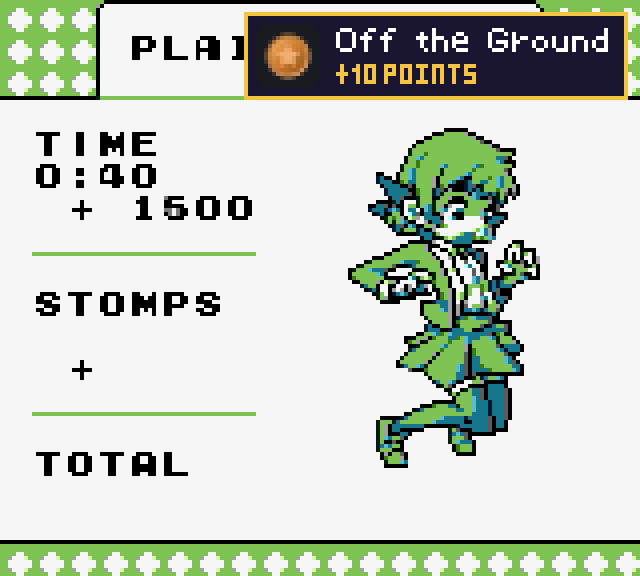
Choose the style (a toast with badge, title and points, or just the badge) and one of six positions in app settings, or try them on the Chromatic page. Pop-ups appear only while the menu is closed.
Each pop-up plays a short chime on the Chromatic's own speaker (or headphones); the volume wheel sets how loud. With Quiet phone while the Chromatic chimes the phone skips its own unlock sound.
With Progress on the Chromatic, steps toward an achievement (like 3/16) show as a small line over the game for two seconds, without a chime.
Supported cartridges
Cartridges with these memory controllers work: ROM only, MBC1, MBC2, MBC3, MBC5, HuC1 and HuC3, which covers nearly every game.
Not yet: MBC6, MBC7, MMM01, the Pocket Camera and TAMA5. These can't be identified yet.
Save RAM counts too. The Chromatic keeps a live copy of the cartridge's save RAM, so achievement sets that read it work on a real cartridge.
EverDrive GB flash carts work as well: pick a game in the EverDrive menu and Cheevotron spots it starting, reads it once (the game restarts once at its title screen) and follows it. Sets that read save RAM don't work with EverDrive games yet.
Night light and extra dim
Cheevotron's firmware adds two screen options to the Chromatic (0.5.1 and newer):
- Night light: a warm tint over the game. In the Chromatic's menu, open Status › Night Light.
- Extra dim: darker than the lowest brightness. Press B at the lowest brightness, or Menu + Left.
Battery
While you play, Cheevotron keeps the Chromatic's Bluetooth chip awake, which uses extra battery. We've optimised it (lower chip speed, data in fewer bursts, a slower radio rhythm while streaming) and will publish measured numbers soon. When Bluetooth isn't in use, the chip sleeps as it does with ModRetro's firmware.
Going back to ModRetro's firmware
Connect the Chromatic to the phone and choose Restore a backup… in Settings › Chromatic › Firmware. It writes your backup back. See Installing the firmware.
Last updated November 20, 2026. Something unclear or wrong? Tell us at hello (at) cheevotron (dot) com and we'll fix the page.